Backup & restore
3-minute read · Backup, export, and restore at every tier
AssetVault data lives on your phone. There's no cloud sync, which means there's no automatic remote backup. You are responsible for keeping your own backups. Three backup formats are available:
Quick reference
- JSON Backup — small, unencrypted, restore-ready metadata. It contains local media paths, not media files.
- Encrypted Backup (.avbk) — password-protected version of the metadata backup. It also does not contain media files.
- Full Export ZIP — unencrypted portability archive with CSV, JSON, and media files the app can read. Available at every tier and directly restorable by AssetVault.
JSON Backup
Settings → Backup. AssetVault writes a single AssetVault_backup_YYYY-MM-DD.json file and opens the share sheet. Save it to iCloud Drive, Google Drive, Files, or email it to yourself.
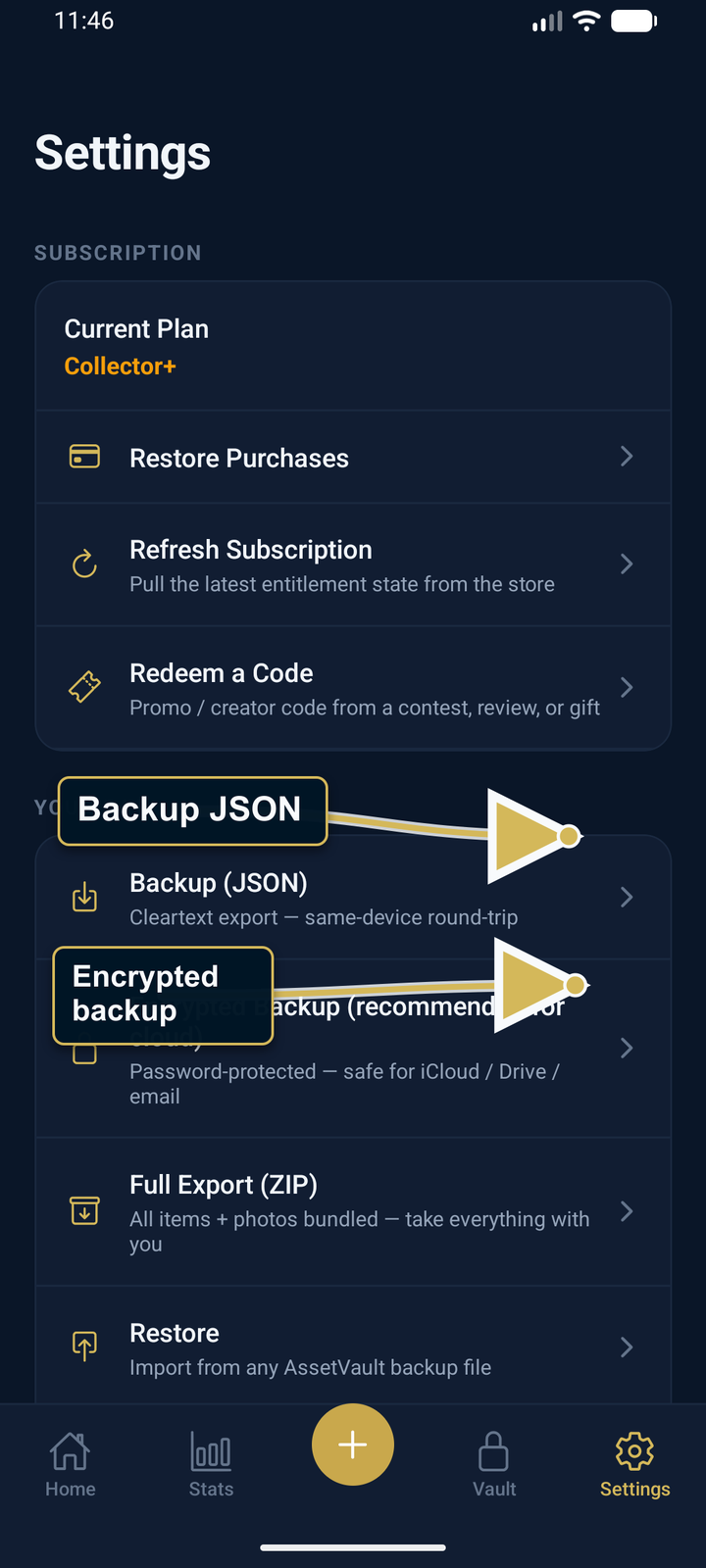
What's in it: inventory metadata and supported related records such as maintenance logs, condition timeline entries, and AI Pre-Grade assessments. What's not: photo and document binaries — only local file references. JSON Backup can restore the records on a compatible AssetVault install, but it cannot recreate media files that are not already at those paths.
Restoring from JSON
Settings → Restore (every tier). Pick the JSON file. AssetVault inspects it and shows a summary before asking for confirmation. Only after you confirm does it replace the current database and insert the backup. Item IDs are preserved so all aux-table relationships (maintenance logs, condition photos, AI Pre-Grade entries) re-link correctly.
If a media path in the backup points to a file that does not exist on the device, the item can still restore but that media will not be available.
Full Export ZIP
Settings → Full Export. AssetVault bundles a ZIP with:
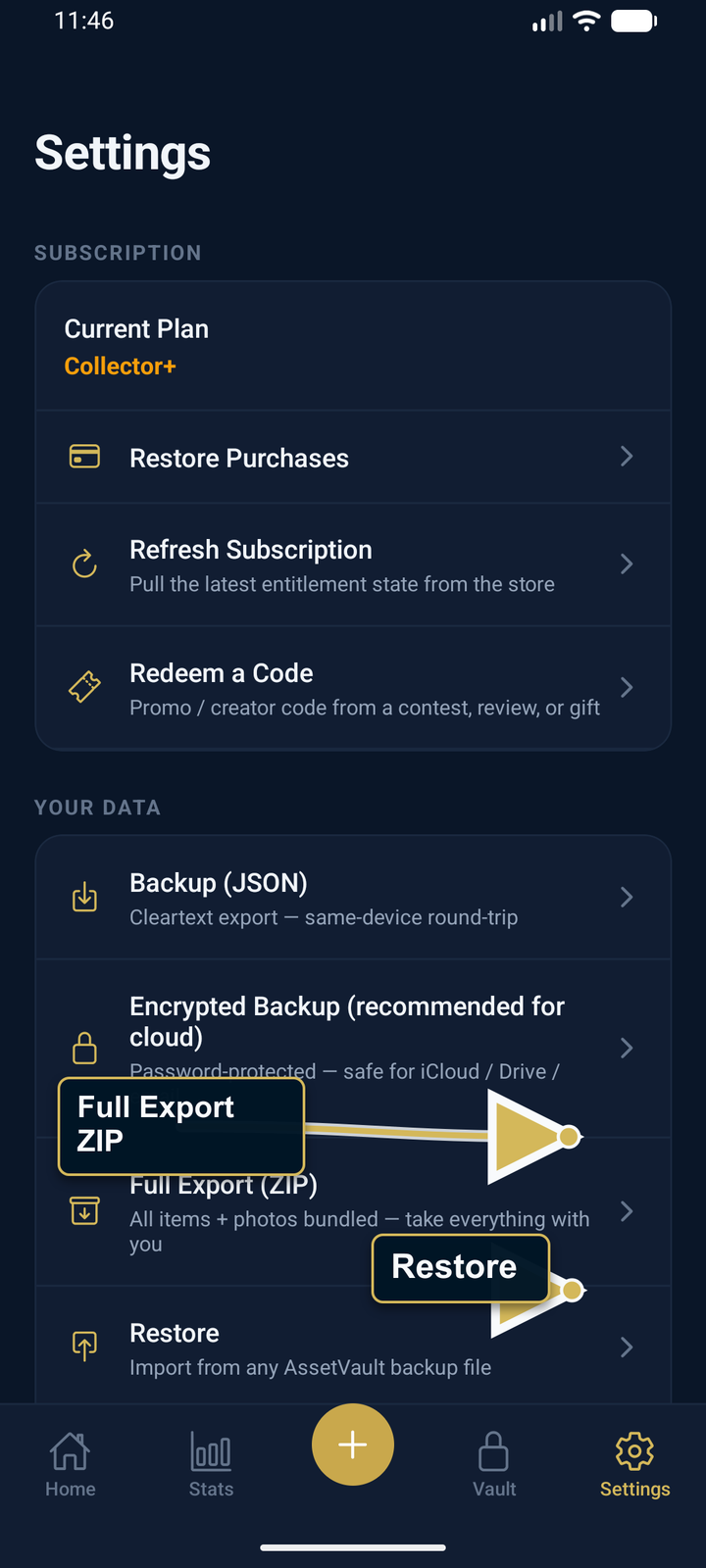
items.csv— human-readable spreadsheet. Open in Excel, Google Sheets, Numbers, anything.full-backup.json— same machine-readable backup as above.photos/— item, receipt/document, and condition-timeline media files that the app can read while building the archive. Filenames include item name + a short ID + (for timeline photos) the captured-at date.README.txt— explains what's in the ZIP for whoever opens it later.
This is the portability archive to keep whether you continue using AssetVault or move your records elsewhere.
Moving to a new phone
- Old phone: create a Full Export ZIP if you want one unencrypted archive containing records and readable media. You can also create an encrypted .avbk metadata backup for cloud or email storage.
- New phone: install AssetVault, sign in with the same App Store / Play Store account.
- Settings → Restore. Pick the ZIP, JSON, or .avbk file. AssetVault inspects it and shows a summary without changing your vault.
- Confirm only when the summary is what you expect. For a Full Export ZIP, verified archived media is reattached to the restored records and unavailable media is reported.
Backup cadence — recommended
Back up on a schedule that matches how often the inventory changes. Prefer Encrypted Backup for cloud storage or email because plain JSON is readable by anyone who obtains it. After adding a large batch, create a Full Export if you also need an archive of media.
After a successful JSON or encrypted .avbk backup, AssetVault schedules a local reminder for 30 days later if you allow notifications. Making another backup replaces the prior reminder so the nudges do not stack.
Saving to iCloud, Google Drive, or another provider
AssetVault currently creates the file and opens the operating-system share sheet. You choose the destination, and that destination's provider terms and security controls apply. There is no automatic AssetVault cloud backup or automatic weekly folder sync.